Skip to content
Gardenly3D

Garden Presentation

Present your garden designs with impact

Stand in the proposed garden, prepare client-ready garden views, and present the design through AI imagery, section cuts, slideshows and drone flyovers.

Gardenly3D visual presentation view of a garden design

Connected design and presentation

Create client-ready imagery from the garden project

Choose a garden view and set the light and atmosphere. Create photoreal or AI images, show a section cut, or guide clients through the design with a slideshow or drone flight. Export images, PDFs or videos, and save slideshows and flights to Document Center.

  1. 01

    Frame the garden

    Stand at eye level, walk to the viewpoint that best explains the space, save it for later, or choose an overhead view or section cut when the design calls for one.

  2. 02

    Set the visual language

    Adjust supported render style, camera, lighting, season and scene controls. For AI imagery, choose a visual medium and optional appearance references.

  3. 03

    Build the story

    Arrange supported slideshow frames or define a drone flight through the current design.

  4. 04

    Publish the output

    Export images, PDFs or video and save supported presentation records to the Document Center.

Professional garden design

Help clients see the potential in your design

Turn the current garden design into compelling client imagery without rebuilding it in a separate visualisation file.

Client-ready imagery

Make the proposed garden easier to imagine

Help clients picture the gardenโ€™s scale, planting and atmosphere from the same project you are designing. Explore eye-level views, adjust the light and season, and save the viewpoints that best explain your ideas.

In practice

  • Save viewpoints and their visibility settings
  • Explore lighting, weather and seasons
  • Show lighting and water effects
Section-cut presentation

Help clients see how the garden fits together

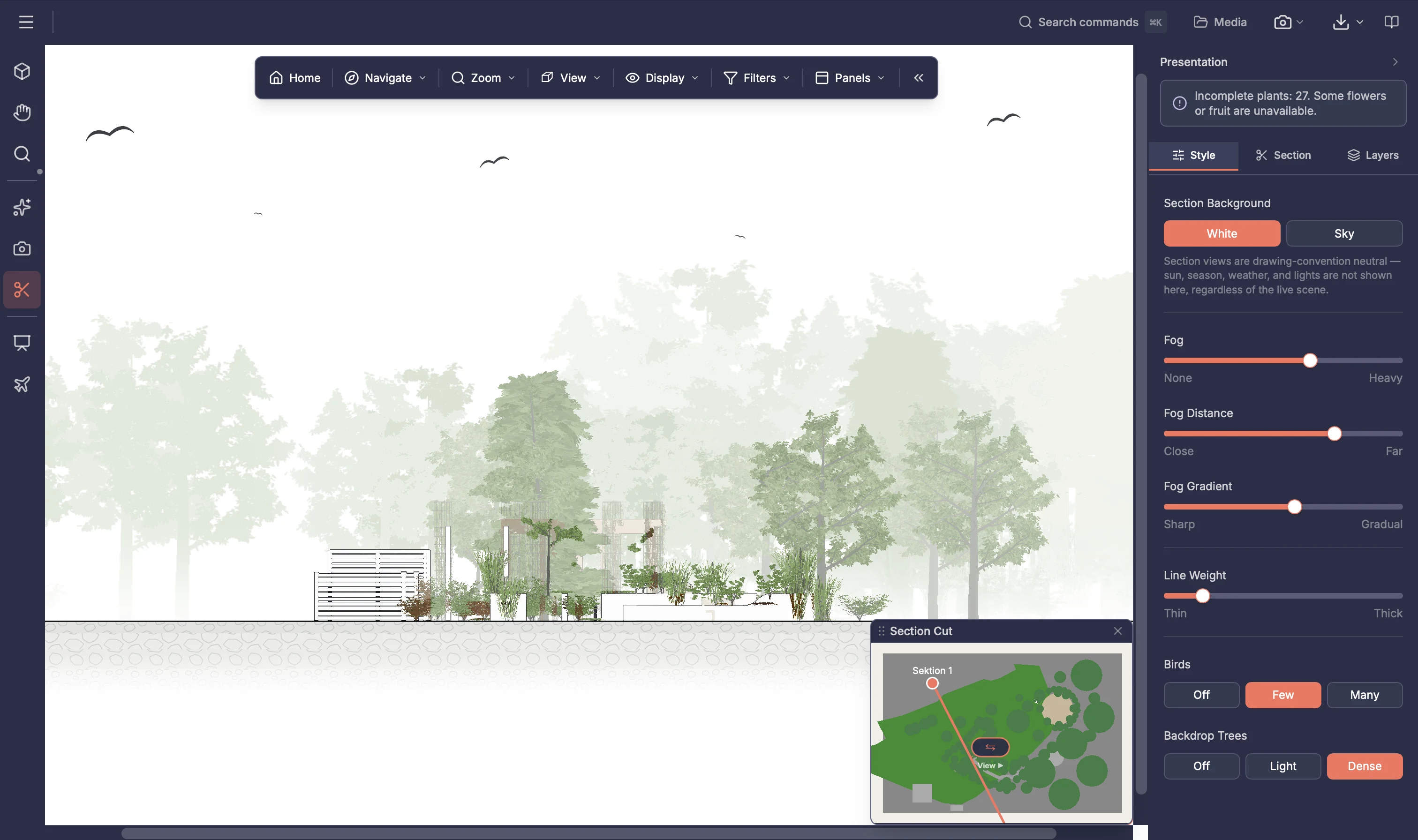
Present a slice through the garden to show its shape, planting and changes in level. Add an artistic fog effect and adjust the background fade to give the presentation your chosen atmosphere.

In practice

  • Position the cut and choose the viewing direction
  • Choose how much of the garden appears behind the cut
  • Adjust fog strength, distance and fade for an artistic finish

Drone flyovers and slideshows

Take clients on a flight through the garden

Create a drone flyover to show how the gardenโ€™s spaces connect. Set the route, camera angles and timing, then export a video for clients to revisit. Use a slideshow when a sequence of selected views tells the story better.

In practice

  • Create and preview a waypoint-based flight
  • Export a flyover video
  • Arrange slideshow views and export PDFs or images

Design-connected AI imagery

Bring your design to life with AI imagery

Create photographic or illustrative images from the current garden view and project information. Choose a visual style or describe your own, add appearance references, then compare the result with the design before sharing it.

In practice

  • Generate from the garden view and project context
  • Choose a style and add up to three reference images
  • Compare the result with the source view

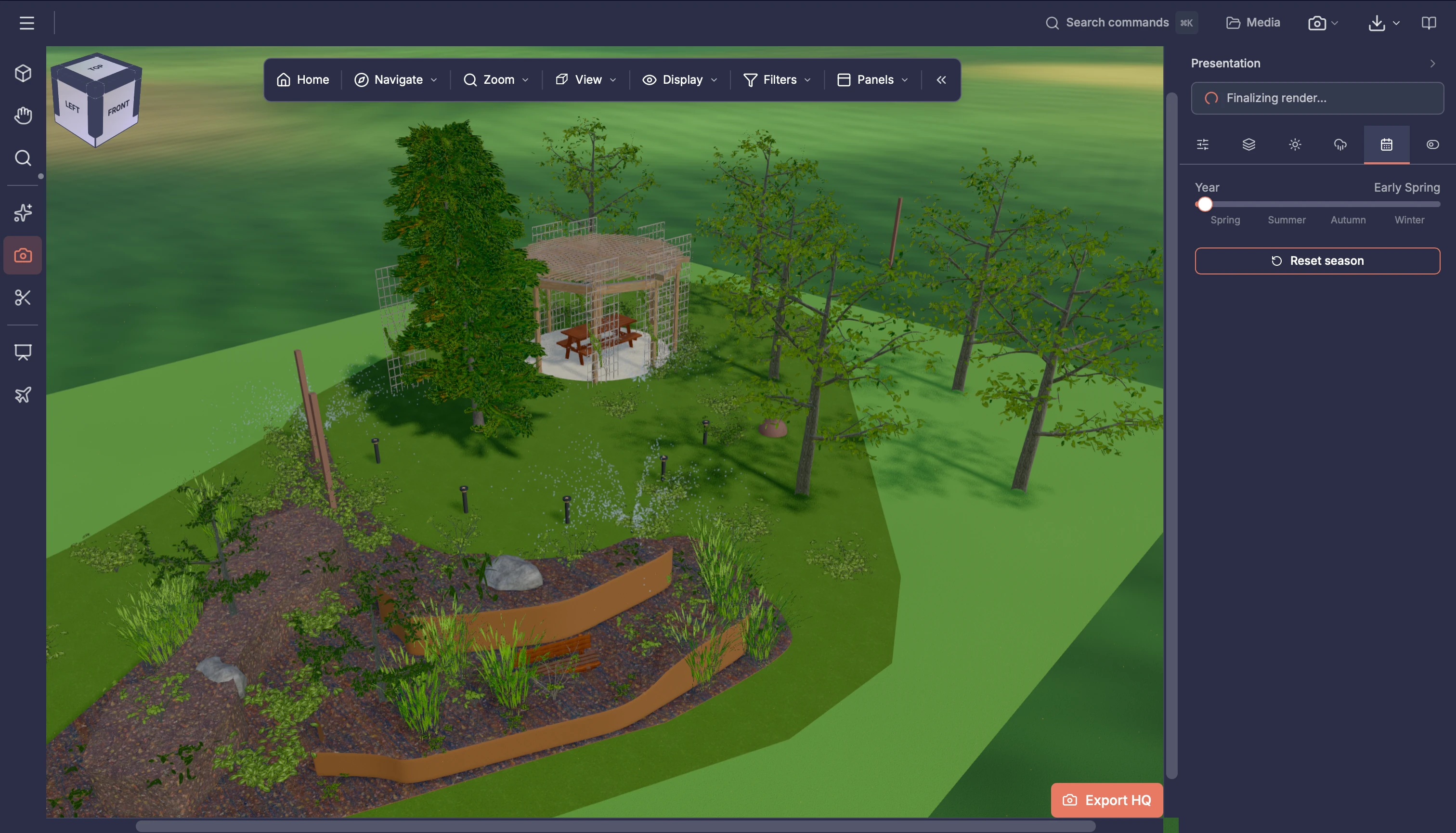
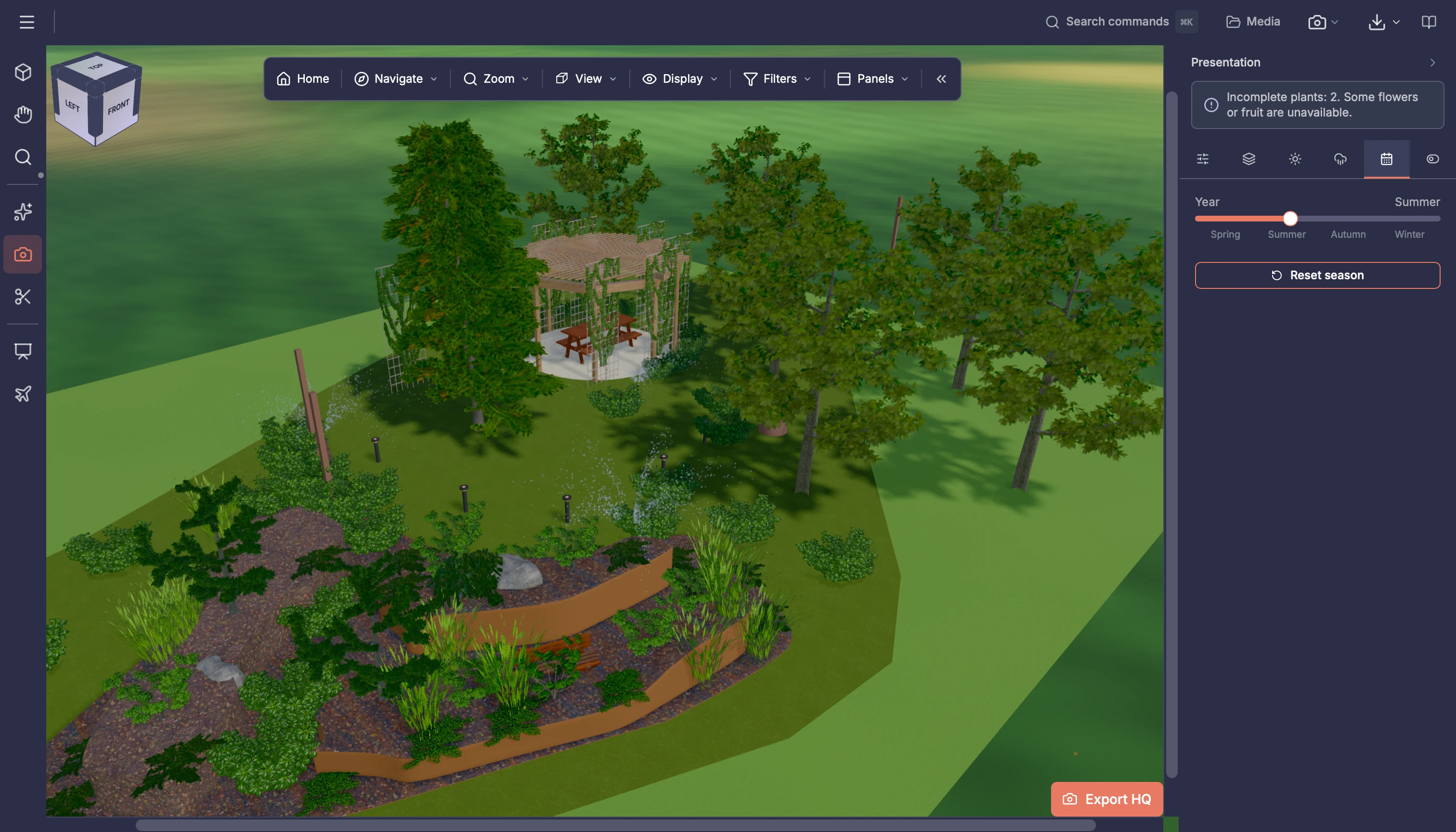
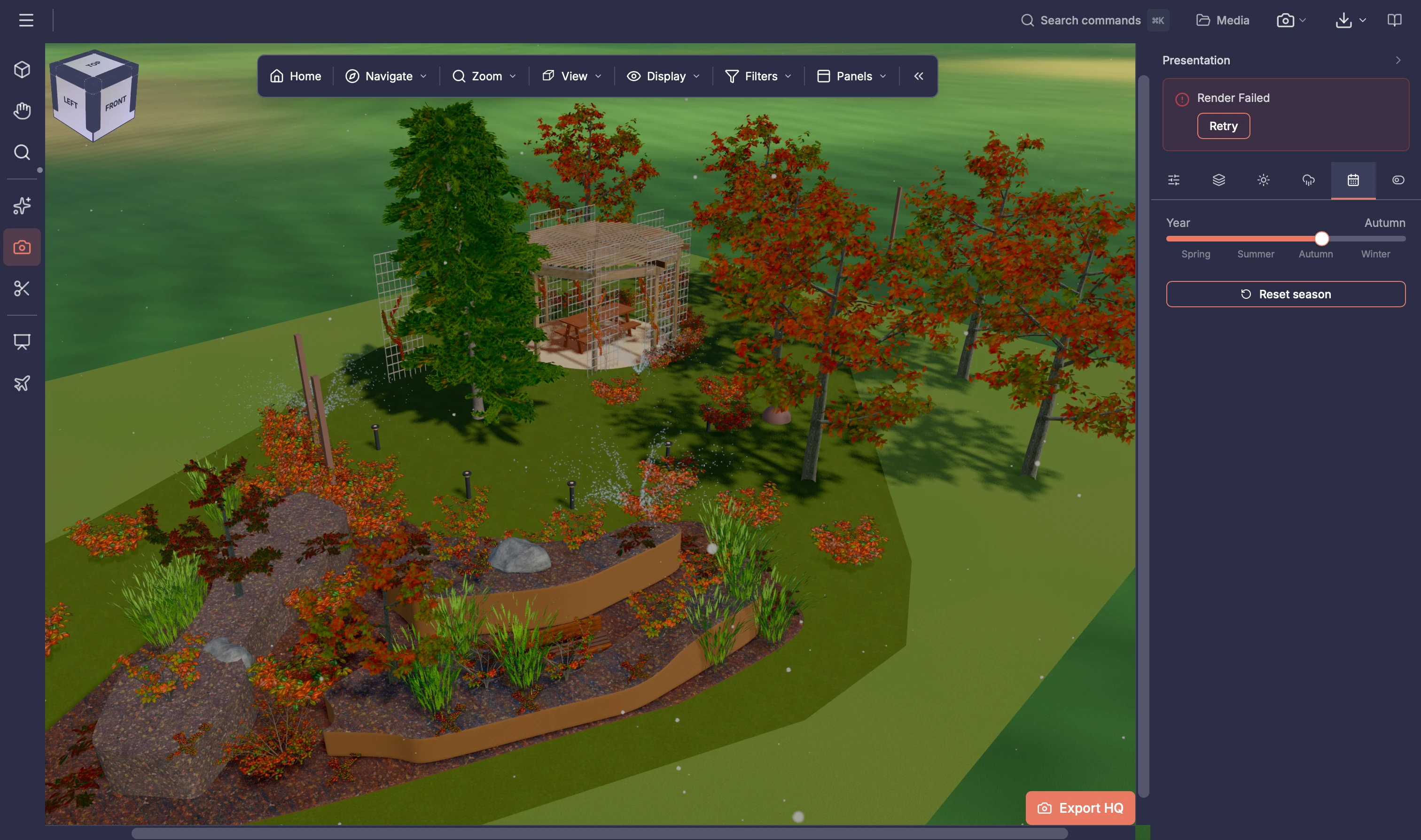
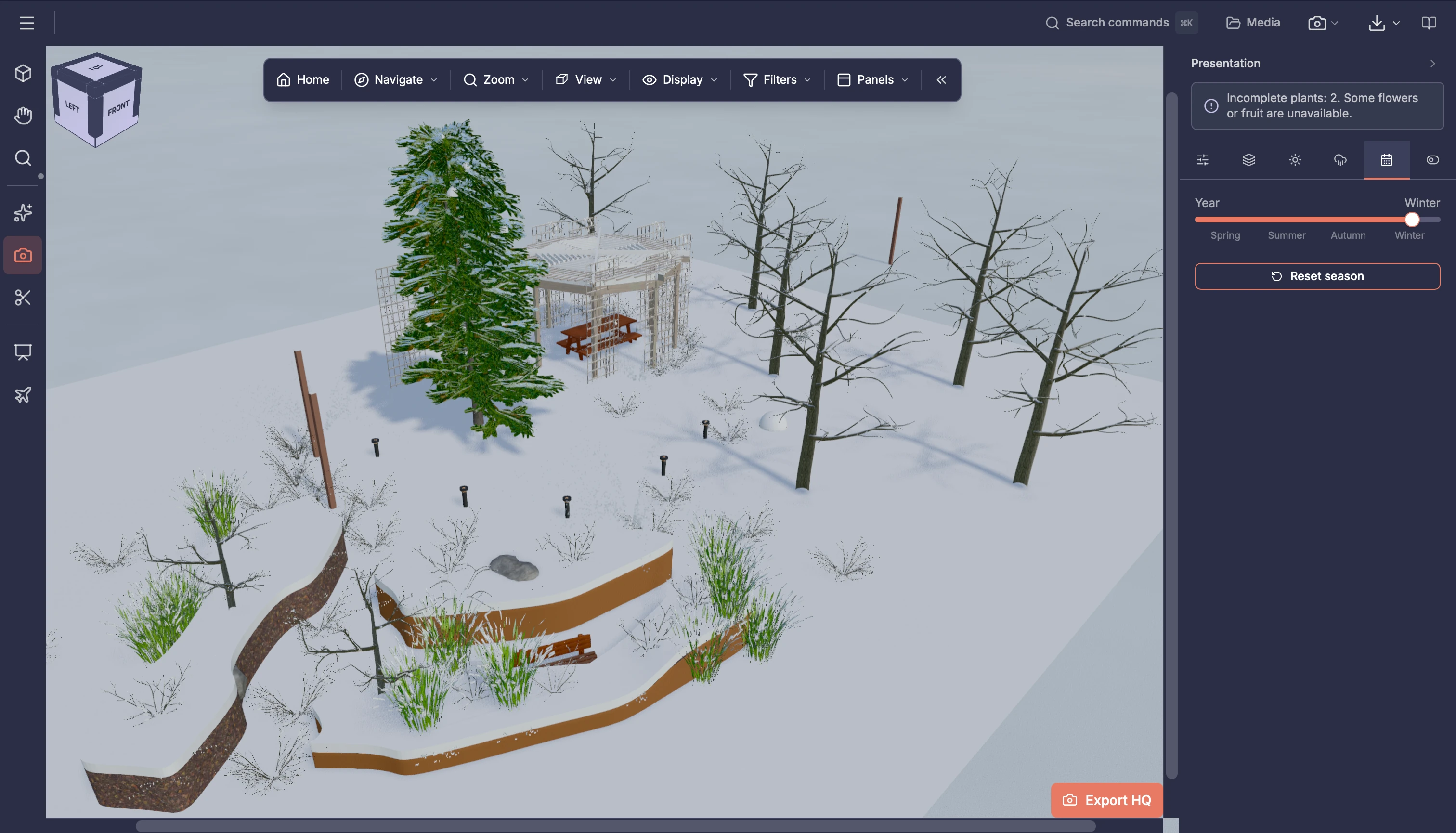
One garden through four seasons

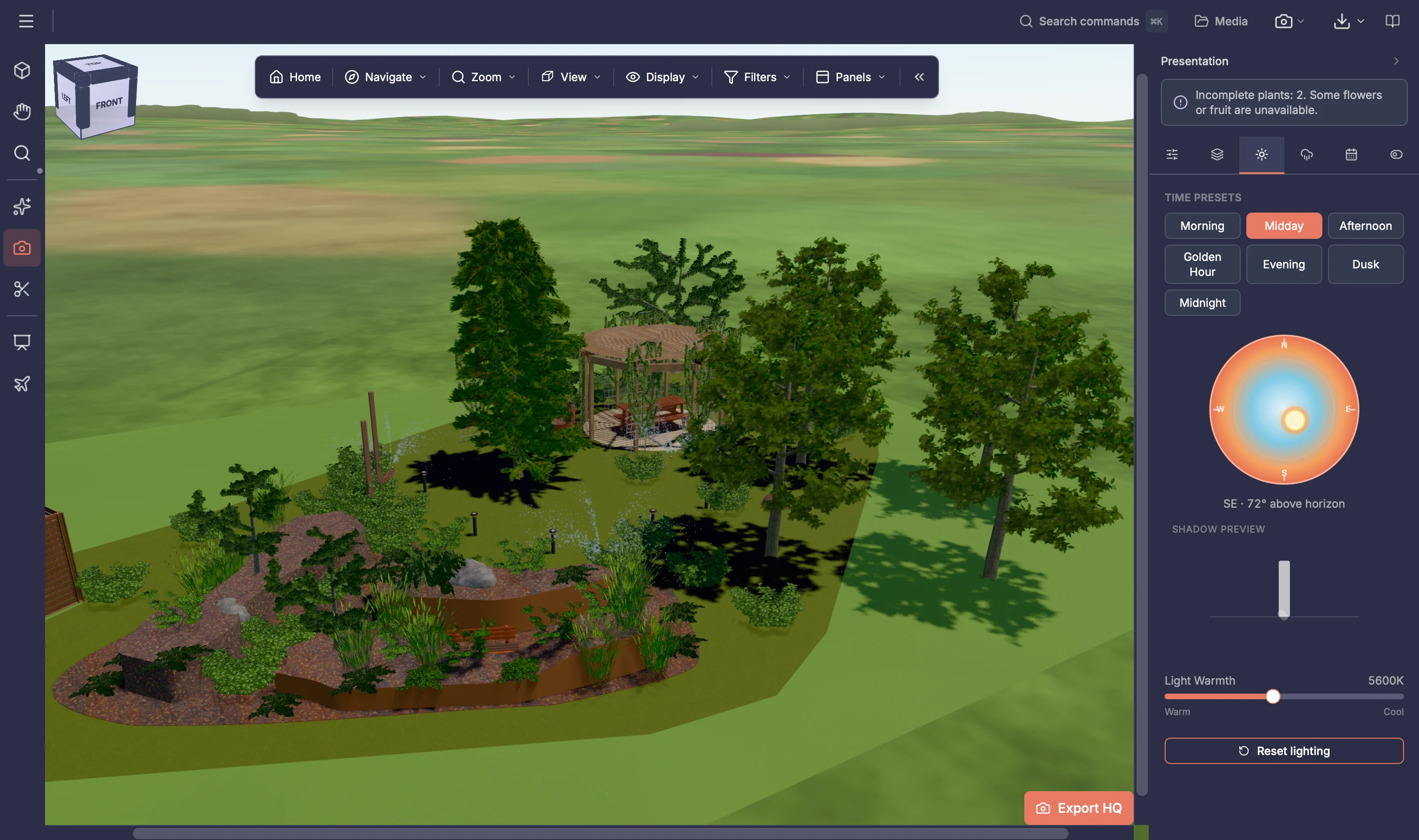
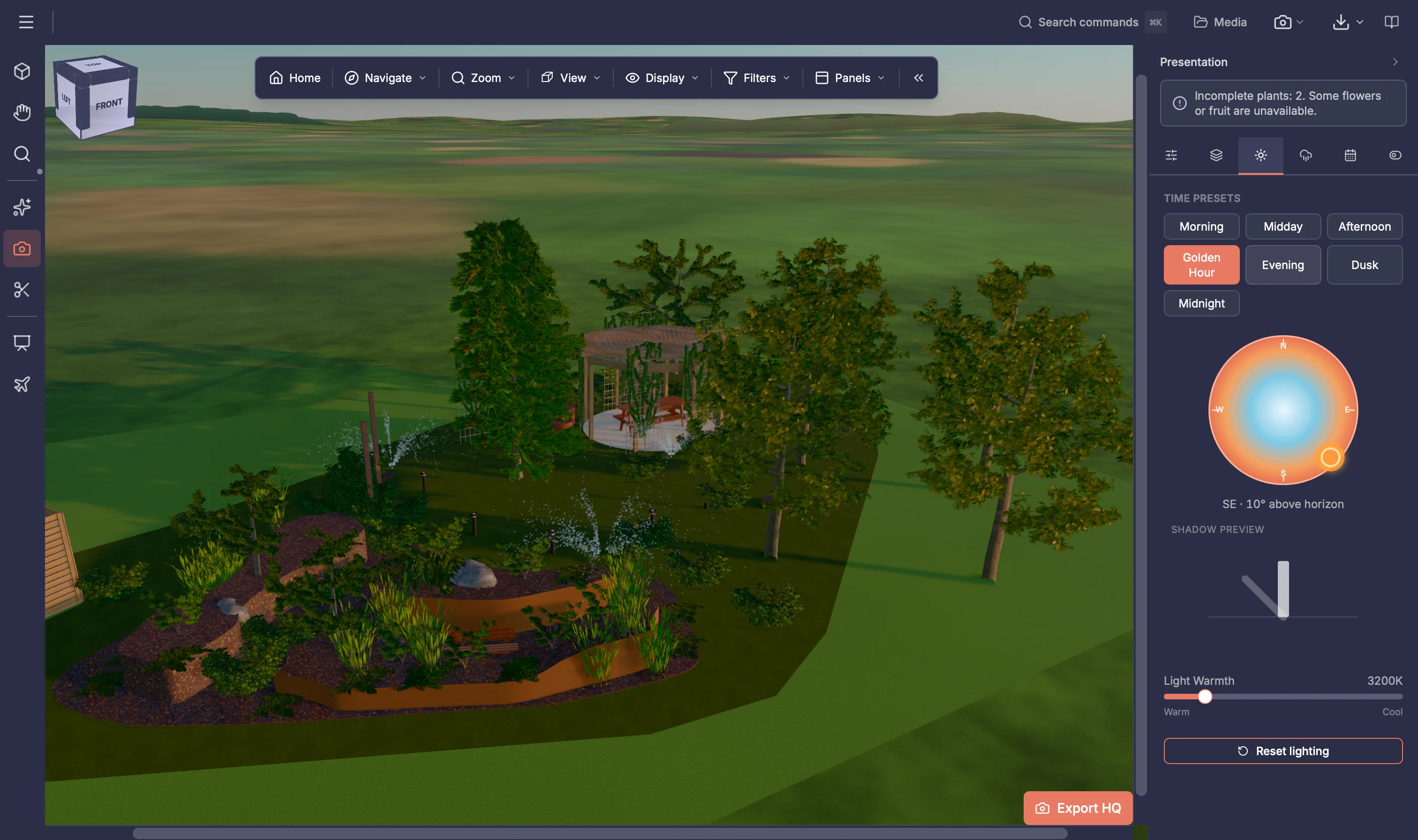
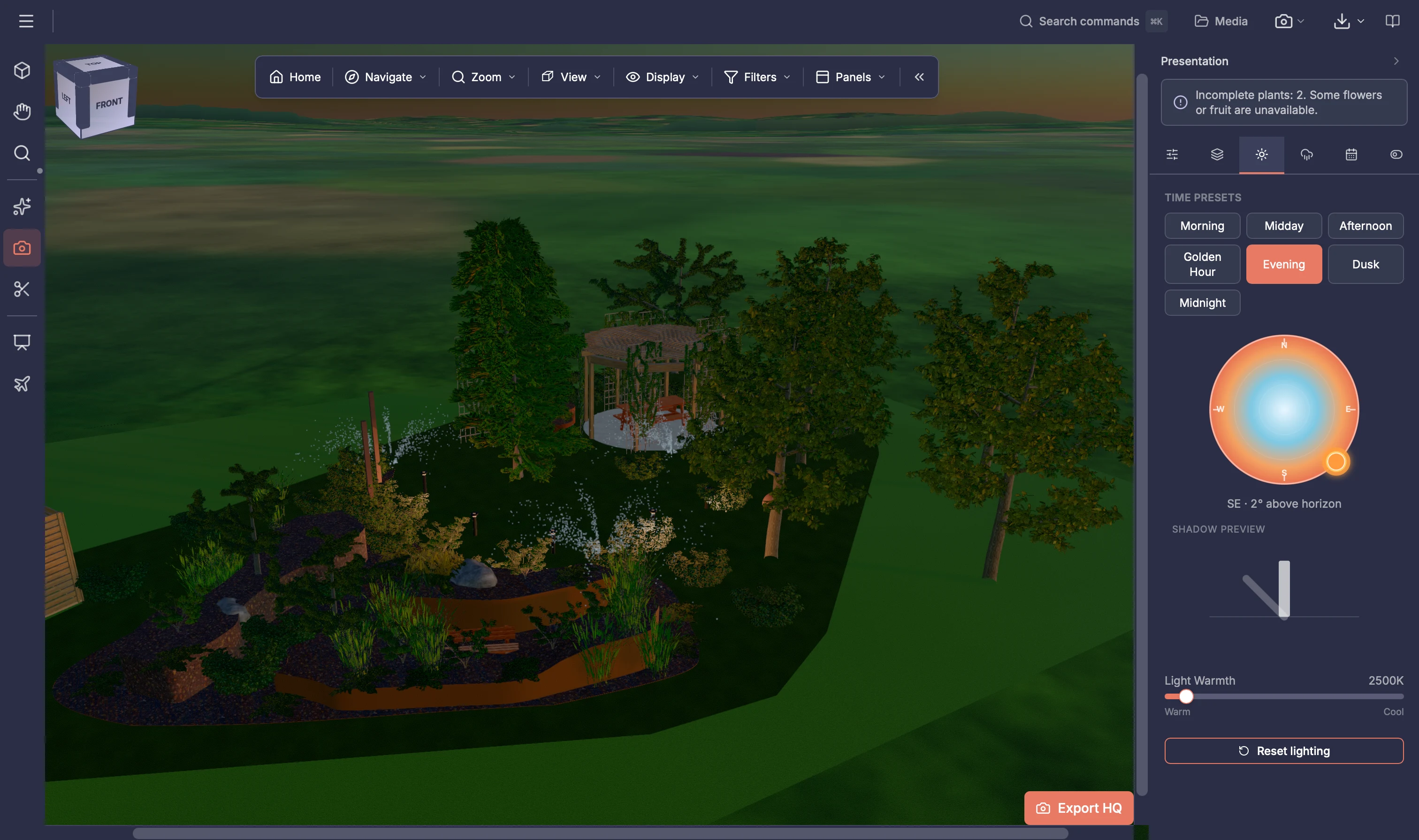
One garden from midday to dusk

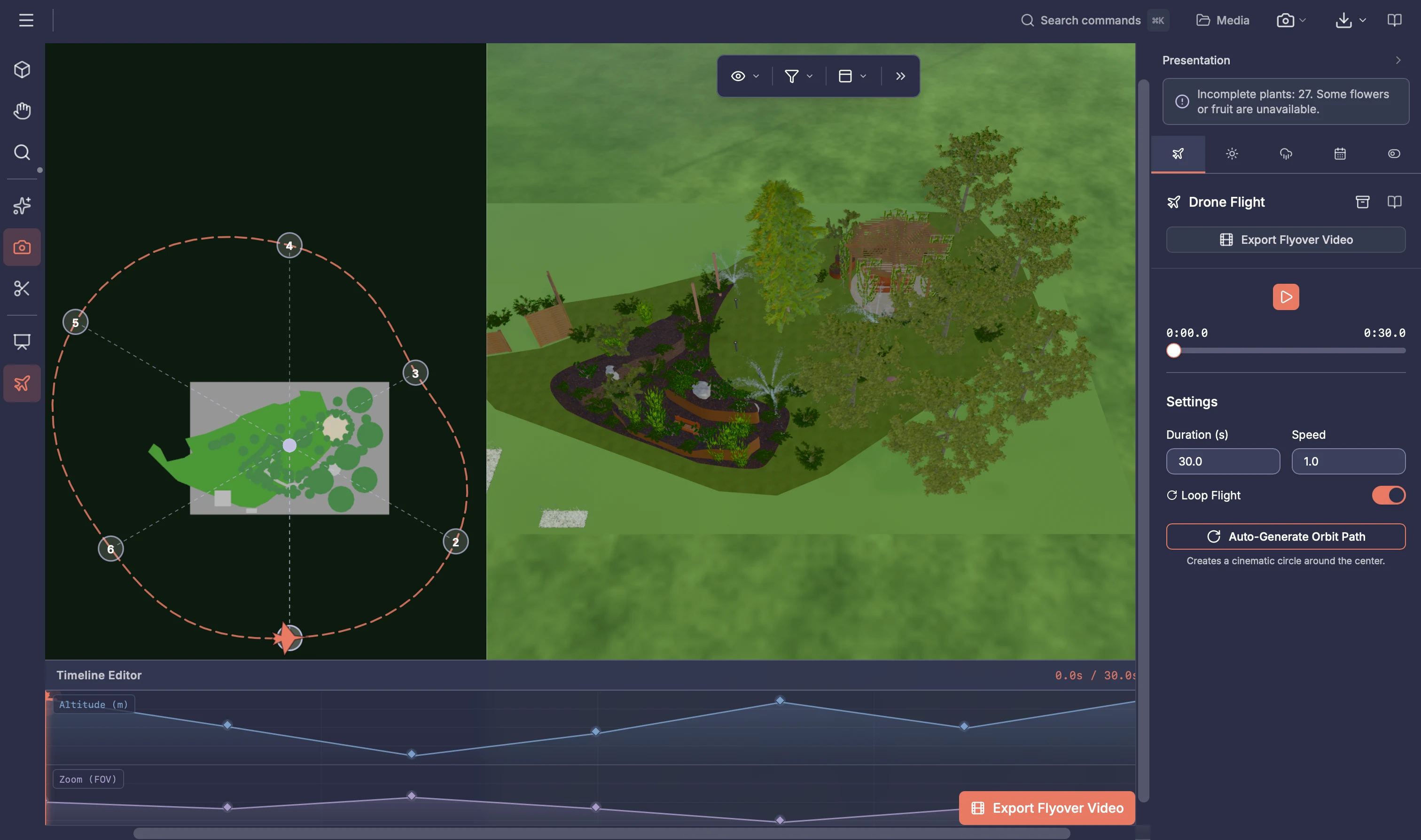
Fly over the garden or cut through it

Capability detail

Garden Presentation capabilities

Photoreal presentation

Explore the garden from a clientโ€™s point of view, then prepare still images with the level of detail the presentation needs.

Interactive photoreal view

Explore the garden directly in the live canvas. Move between viewpoints, then pause to review the at-rest view with detailed planting, material textures, lighting and reflections.

Fast and Ultra still-image export

Use Fast for quicker image preparation, or Ultra ray tracing for more lifelike light and shadows in photoreal views. Choose 1K, 2K or 4K output and download PNG or JPEG images.

AI rendering

Explore alternative presentation imagery from the design, adjusting the visual direction and reviewing the generated results before sharing them.

AI-generated presentation images

Generate from the current 3D garden view and project information, including plants, dimensions, materials and selected scene conditions. AI image generation uses render credits.

Visual media and custom style

Choose Photorealistic, Watercolor, Marker, Sketch, Masterplan, Technical or Concept, or describe your own look with Custom.

Reference-guided appearance

Upload up to three images and identify each as a style, material or mood reference while the garden view remains the layout reference.

Plant identity and scale context

Use the placed plants, their dimensions and the captured garden view to guide how planting appears in the generated image.

Draft and final quality

Use draft generation while exploring a visual direction, then choose final quality with supported 1K, 2K or 4K output.

Drag to compare with the garden render

Move the comparison slider to reveal the at-rest garden render and the AI-generated image side by side. Check the result against the design before sharing it.

Keep selected AI images

Return to generated images in the gallery, download or copy an image, and save a selected result to Document Center.

Section-cut presentation

Help clients understand the shape, planting and levels of the garden with a focused view through the design.

Position the section cut

Place and turn the cut line to show the part of the garden you want to explain. Flip the viewing direction to present it from the other side.

Choose the view behind the cut

Adjust how much of the garden appears behind the section, keeping enough context to make the design clear.

Artistic fog and background fade

Set the fog strength, distance and gradient to create a soft, atmospheric presentation style.

Style the section view

Choose the presentation colours, fill and line weight. Show configured soil layers when they help explain the gardenโ€™s levels.

Slideshows

Build a clear sequence of garden views that you can present live or send to clients as a document.

Capture views and add text

Capture selected garden views and add titles, descriptions, headings, captions or other supporting text.

Arrange and play the story

Reorder slides and set their transition and display times. Preview the sequence before presenting it to a client.

Export slides

Export the presentation as a PDF or individual PNG or JPEG images for clients to revisit.

Save the slideshow

Save the slideshow configuration to Document Center with the garden project.

Drone flights

Take clients along a planned route to show how the gardenโ€™s spaces connect, then export a video they can watch again.

Plan the flight route

Place and edit waypoints through the garden, adjusting altitude, camera tilt and zoom to reveal the design.

Live canvas flight preview

Watch the flight animate directly in the presentation canvas while following the route on the map. Review how the garden unfolds before exporting a video.

Flight timing and playback

Set the flight duration and playback speed, then play, pause or loop the flight to review the camera movement.

Interactive flight timeline

Follow flight height and camera zoom on timeline tracks. Scrub to inspect a moment or drag waypoint markers to adjust their timing. Set camera angle and height in the waypoint controls.

Drone video export

Export a supported drone flyover as a WebM or MP4 video, depending on browser capability.

Save the flight

Save the drone-flight configuration to Document Center so it stays with the garden project.

Sunlight, weather and season

Choose sunlight, weather and seasonal conditions to show how the gardenโ€™s atmosphere changes.

Time of day and sunlight

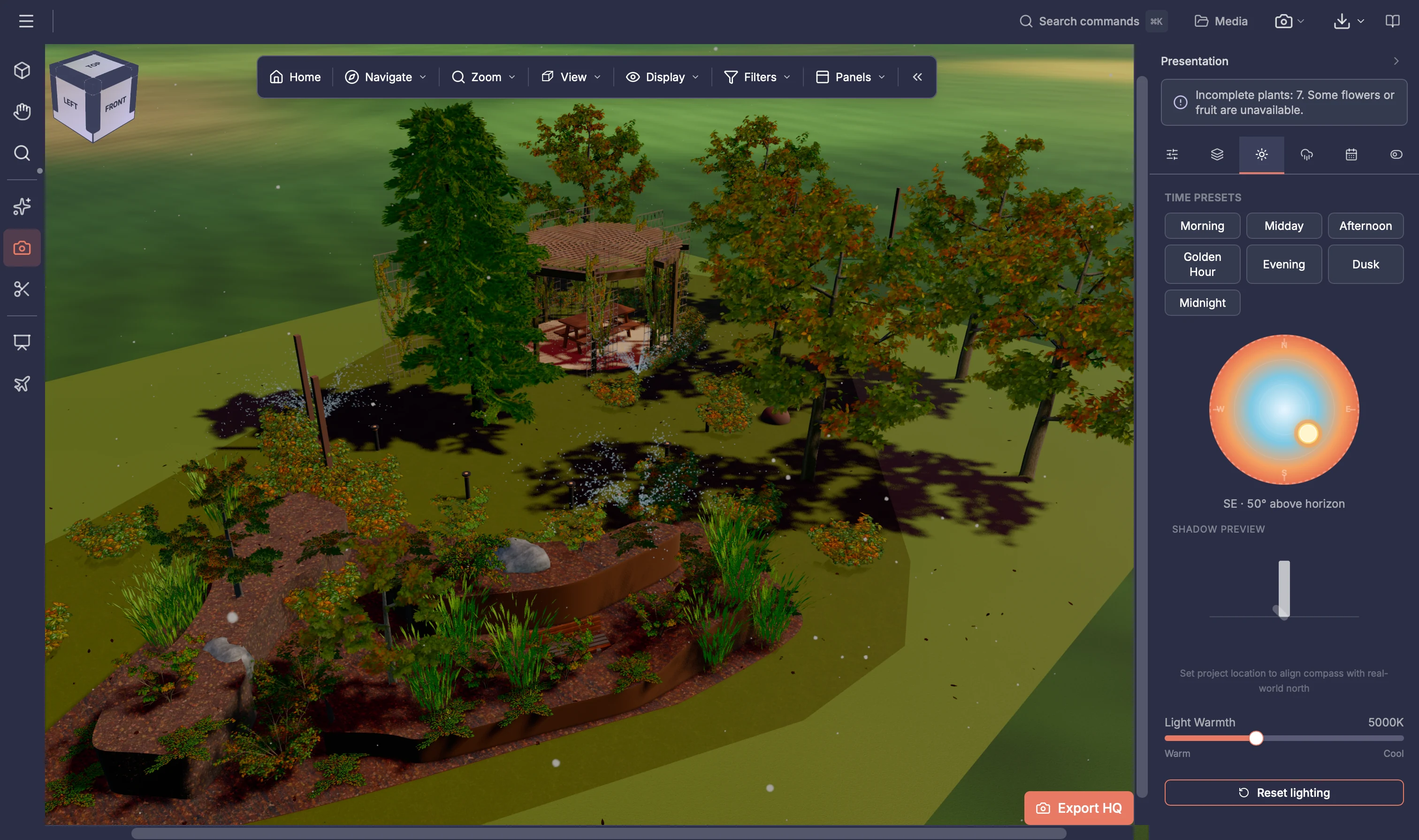
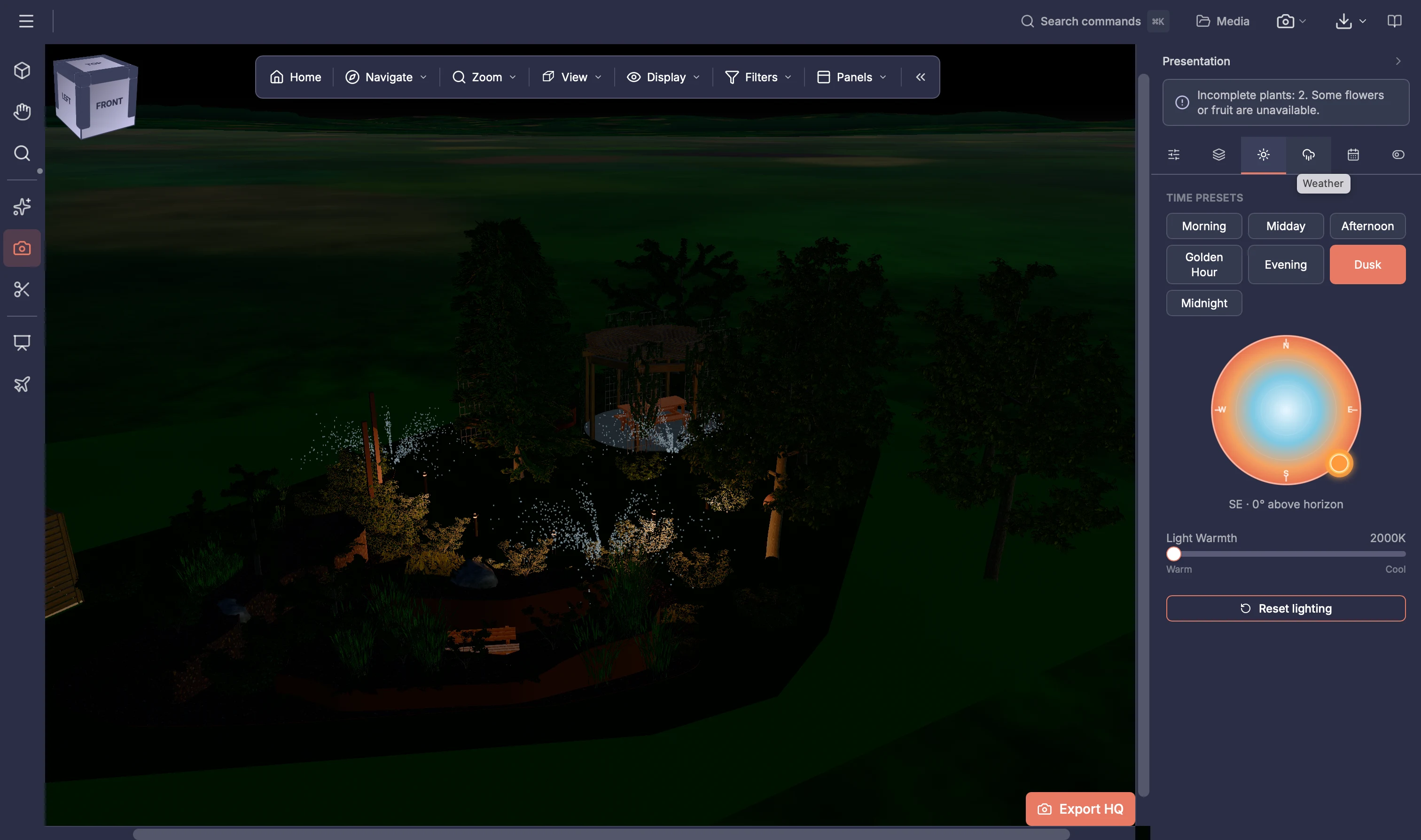
Choose supported time-of-day presets and adjust sun altitude and light warmth.

Weather effects

Explore rain, snow, fog, wet surfaces and wind to show the garden in different weather conditions.

Weather-responsive clouds

Show bright clouds in fair weather and denser, darker skies with rain or storms. Cloud appearance responds to cloud cover, precipitation and light, with movement driven by wind settings.

Seasonal appearance

Show how the garden changes through the year, from green summer foliage to yellow, red and brown autumn leaves. Deciduous plants lose foliage toward winter, with fallen leaves adding ground detail.

Planting moves with the wind

Bring the live presentation to life with swaying trees, plants, meadow grasses and wildflowers. Adjust wind speed and direction to set the movement of supported vegetation.

Garden lighting and water animations

Bring the systems placed in your drawing to life during a presentation.

Garden lighting

Show the gardenโ€™s lighting after dark. Switch supported lights on or off and adjust their brightness, colour and warmth, individually or by group.

Sprinkler animations

Show animated spray from sprinklers placed in the drawing. Switch them on or off while presenting the garden.

Fountain animations

Show animated water jets from configured fountains and switch supported pond fountains on or off in the Control panel.

Render the appearance set in your drawing

Plant and surface settings prepared in Drawing carry through to the presentation, so you can show the gardenโ€™s character without setting them up again.

Material texture appearance

Carry colour tint, matte or glossy finish, surface detail and metallic appearance from Drawing into photoreal views and still-image exports. Compare material choices in the context of the whole garden.

Photo cutouts

Add people, plants and other flat photographic elements to help clients understand scale and the intended atmosphere.

Upright photo cutouts

Remove a uniform image background with colour tolerance and soft edges, then place a person, plant or other photo cutout at a chosen physical size and elevation.

Face the presentation camera

Let a free-standing cutout turn horizontally toward the viewer, or keep it fixed against a wall. Cutouts remain flat, upright images.

Useful to know

High-resolution images, Ultra ray-traced stills and longer videos can take more time and memory. Performance and available export options depend on your computer, browser, garden size and detail, and output settings. Use Fast or a lower resolution for previews; demanding exports may need a more capable computer with more system and graphics memory.

AI-generated images can vary. Review them against the garden design and project information before sharing. AI image generation uses render credits; see Pricing for credit details.

Continue exploring Gardenly3D